How to Hand-Coil a Custom USB-C Cable for Your Keyboard
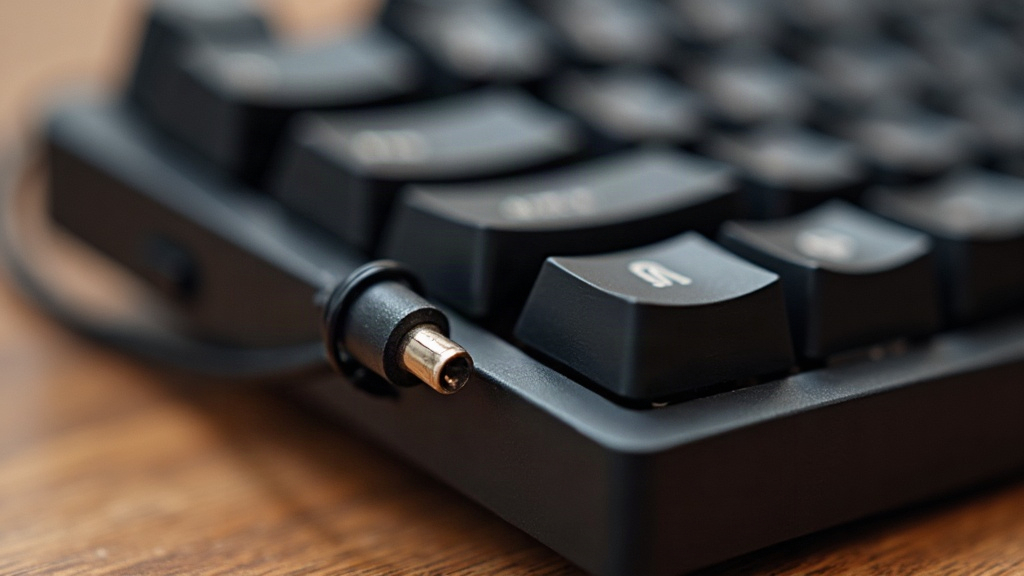
Hand-Coiling Your Own USB-C Cable
Hand-coiling a custom USB-C cable is one of those rare desk projects that actually delivers on its promise. Under $20, zero soldering, maybe forty-five minutes of your Saturday, and you go from a boring stock cable to something that looks like it came off an artisan cable maker’s Etsy page. This guide covers every step, from picking the right cable to locking in coils tight enough that they won’t sag into limp spaghetti after a week on your desk.
Why Coil Your Own Cable?
Store-bought coiled keyboard cables run anywhere from $35 to $80, and even then you’re stuck picking from whatever three color combos the seller happened to stock. Coil your own and you get to:
- Match your keyboard’s exact colorway, right down to niche GMK keycap sets most sellers have never heard of
- Pick your own paracord sleeve color and decide exactly how tight the coil sits
- Save money by reusing a cable that’s probably already sitting in a drawer
- Add a detachable aviator connector for that “custom” look without touching a single wire
What You’ll Need
- A USB-C cable, braided or TPU, at least 3-4 feet long so there’s enough slack to coil
- Something cylindrical to wrap around: PVC pipe, a fat marker, a 1/2-inch wooden dowel. The diameter you choose decides your coil size
- Heat-resistant tape or zip ties
- A heat gun, or just a pot of boiling water
- Optional: 550 paracord in two colors, a lighter, heat-shrink tubing, if you want the finished sleeved look
Step 1: Choose the Right Base Cable
Not every cable is cut out for this. TPU cables (that slightly rubbery, stretchy material) hold a coiled shape much better than stiff braided nylon ones. Got a braided cable lying around? It’ll still work, but expect the coil to relax faster, and you’ll probably be re-setting it every couple of months.
Also worth a quick check: the cable’s power rating. If it’s feeding a keyboard running QMK or VIA with RGB lighting, make sure it can still carry enough current. In practice this is rarely an issue, since most keyboards only pull 5V/500mA, which almost any USB-C cable handles without breaking a sweat.
Step 2: Wrap the Cable Around Your Coiling Form
- Leave 6-8 inches of straight cable free on each end. These become your leads, the bits that actually plug into things.
- Start at one end and wrap the cable tightly and evenly around your form, the same way you’d wrap ribbon around a candy cane.
- Keep each wrap snug against the one before it. Gaps here turn into loose, uneven coils later, and there’s no fixing that after the fact.
- Zip-tie or tape both ends down so nothing unwinds while it’s heating.
Tip: Want that tight, “tech-style” coil you see on $70 artisan cables? Use a thin form, like a fat pen. Prefer something looser and more retro-looking? Go with a form closer to an inch across.
Step 3: Heat-Set the Coil
This is the part that actually locks the shape in. Skip it and you’ve just got a cable wrapped around a pipe, not a coiled cable.
- Boiling water method: Drop the wrapped cable, still on its form, into boiling water for 3-5 minutes. The heat loosens up the cable’s internal structure so it “learns” the coiled shape.
- Heat gun method: Run the heat gun over the wrapped cable for 1-2 minutes, moving constantly so you don’t scorch the jacket. Keep it about 3-4 inches away and never let it sit in one spot.
Here’s the part almost everyone rushes: let the cable cool completely on the form before cutting the ties. Pull it off while it’s still warm and you’ll watch your tight coils go saggy within days.
Step 4: Remove and Test
Once it’s fully cool, cut the ties and slide the coil off. It should hold its shape on its own, no help needed. If it’s still loose and floppy, don’t panic, just repeat the heat-setting step for another 2-3 minutes.
Plug it in and see how it actually sits on your desk. Too much coil crowding your keyboard? Too little slack reaching your computer’s USB port? Adjust the straight lead lengths now, before you commit to a paracord sleeve.
Step 5 (Optional): Add a Paracord Sleeve
Want the full artisan look? Here’s how:
- Cut two colors of 550 paracord, roughly three times the length of your cable.
- Pull out the paracord’s inner strands. You only want the outer sheath, the inner guts just add bulk.
- Thread both colors over the cable and twist them together as you go, candy-cane style.
- Seal both ends with heat-shrink tubing and a quick pass of a lighter so nothing frays.
- Re-coil the now-sleeved cable around your form and run through the heat-setting process one more time.
Common Mistakes to Avoid
- Grabbing a stiff braided cable and expecting crisp, tight coils. It won’t happen. Switch to TPU if that’s the look you’re after.
- Pulling the cable off the form while it’s still warm. This single mistake causes more flat, relaxed coils than anything else on this list.
- Coiling too tightly right up against the connectors. Leave a little slack there so the USB-C plug isn’t getting yanked and stressed every time you unplug it.
- Jumping straight to the paracord sleeve without testing the fit first. Nail the coil shape before you add anything on top of it.
Conclusion
A hand-coiled USB-C cable is about as low-risk as desk upgrades get: cheap, forgiving, and it needs basically no technical skill. Grab a flexible TPU cable, wrap it evenly, heat-set it properly, and resist the urge to unwrap it before it’s cooled all the way. Throw a paracord sleeve on top if you want the full custom-cable look. Less than an hour of work, and your desk ends up with something nobody else’s setup has.